


How to find all photos of a person on your computer
Updated 3 November 2026
To find every photo of one person, you need face grouping: software that finds the faces in your photos, puts the same person’s faces together and lets you give the group a name. After that, searching the name returns their photos. The Photos app on a Mac does this for its library in People & Pets. On Windows, the People tab lives in the Photos Legacy app while Microsoft brings faces back to the new Photos app. For photos in ordinary folders, BeaconFind groups faces on your own PC or Mac, and only if you turn it on.
File names do not help here. A folder of IMG_4410.jpg to IMG_6912.jpg says nothing about who is in each picture, and neither File Explorer nor Finder looks at faces. Describing the photo (“woman in an orange jacket”) gets you look-alikes, not the same person across ten years of pictures.
What Windows and Mac offer built in
Windows. Microsoft’s own support page says the People tab and grouping photos by similar faces are not available in the new Photos app, and that the downloadable Photos Legacy app still has them. Its October 2026 post about the new Photos app describes familiar faces as a way into your collection, rolling out to Windows Insiders first and to all Windows 11 users later. File Explorer has no face search of any kind.
Mac. Photos sorts pictures of people, dogs and cats into the People & Pets collection, where you can name them, and Apple says the face analysis happens on the device. It covers the photos in your Photos library; pictures kept as files in Finder folders are outside it.
Finding a person with BeaconFind
BeaconFind’s People feature works on the folders you index, on Windows and on a Mac. It is part of the Balanced and Max tiers, and it is off until you switch it on.
- Turn it on. Under Settings, General, Privacy, switch on Recognise people in photos, or open People in the sidebar and choose Turn on. This downloads about 40 MB of face models once.
- Let it look. BeaconFind goes through the photos it has indexed, newest first, and checks new photos as they are indexed. Groups appear on the People page as they are found.
- Name the groups. Each unnamed group shows a few faces and Add a name. Type the name once and every photo in that group carries it.
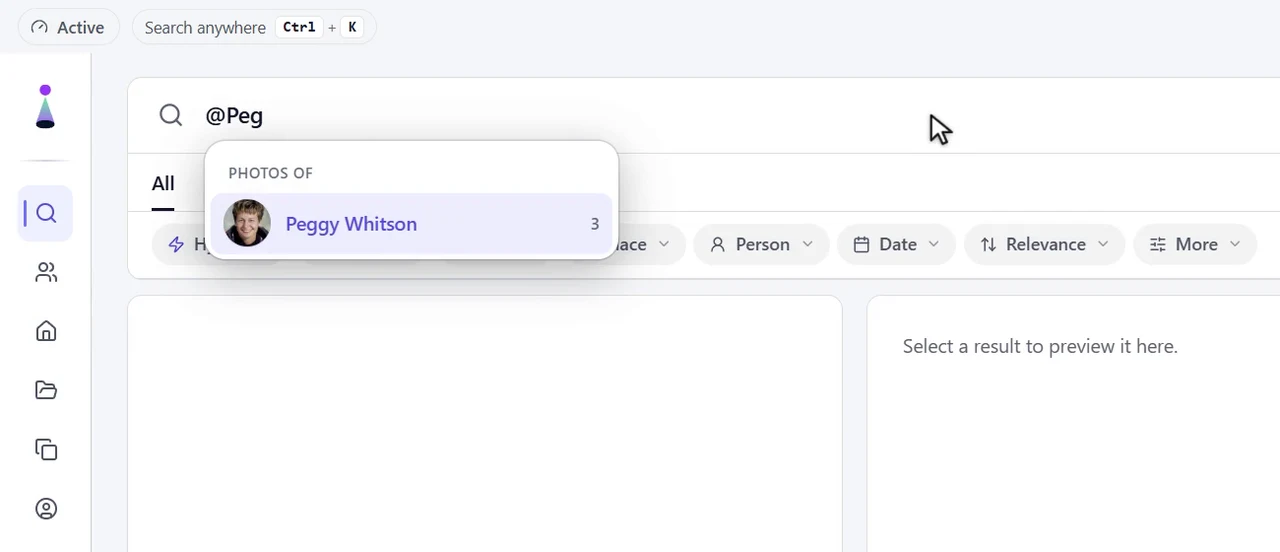
- Search by name. In the search box, type @ and the first letters of a name, then pick the person from Photos of. They become a filter you can combine with words, a place or a date. The Person button in the filter row does the same.


Fixing a wrong group
Face grouping is careful rather than eager, so the same person can start out in two groups, and now and then a face lands in the wrong one. Both are quick to correct on the People page:
- Two groups for one person: hold Ctrl or Shift to choose two or more, then merge them into one person.
- A face in the wrong group: choose it and use Move to… to put it with the right person, or mark it Not this person.
- Something that is not a face: mark it Not a face.
- A group you do not care about, such as strangers in the background: Hide it.
What is stored, and how to remove it
Faces are found and compared on your computer. BeaconFind stores where each face is in its photo, a numeric face signature used for grouping, the names you type and small face previews, all in its encrypted index on your computer. None of it is sent to us or included in bug reports. Turning the feature off stops the scan and keeps your names until you delete them; Delete all face data, next to the switch, removes every face, every name, the previews and the face models, and leaves your photos untouched. The full detail is in our privacy policy.
Name them once, find them anywhere, free for 14 days, no card. Balanced and Max tiers, on your own PC or Mac.
Download BeaconFindFrequently asked questions
How do I find all photos of a person on my computer?
Use face grouping. A face-recognition tool finds the faces in your photos, groups the ones that belong to the same person, and lets you name each group, after which a search for the name returns every photo of them. The Photos app on a Mac does this for its library in People & Pets. On Windows the People tab is in the Photos Legacy app, and Microsoft is bringing faces back to the new Photos app. BeaconFind does it for photos in ordinary folders on your own PC or Mac.
Does Windows 11 have face recognition for photos?
Microsoft says the People tab and grouping by similar faces are not available in the new Photos app but are in the Photos Legacy app. Its October 2026 post about the new Photos app describes faces as a starting point for exploring your collection, rolling out to Windows Insiders first. File Explorer itself has no face search.
Is face recognition in BeaconFind on by default?
No. It stays off until you turn on Recognise people in photos under Settings, General, Privacy, or from the People page. Until then no face is looked for and the face models are not downloaded.
Are faces or names sent anywhere?
No. Faces are found and compared on your computer. Face data and the names you type are stored in BeaconFind's encrypted index and are not included in bug reports. Delete all face data, in the same place as the switch, removes every face, every name and the face models; your photos are not touched.
Which tiers include People?
Balanced and Max. On the Lite tier the People page and the switch are not shown.