


How to search audio and video files for spoken words
Updated 3 November 2026
To search audio and video files for spoken words, the speech first has to be transcribed into text; then an ordinary search can find it. Windows Search and Spotlight index a recording’s name and details, not what is said in it. On a Mac, Voice Memos and Notes transcribe the recordings kept in those apps. BeaconFind transcribes the audio and video files in the folders you index, on your own computer, so a word someone said finds the recording and opens it at the moment it was said.
Think of the lecture recording where the professor explained the one formula you need, the voice note with a door code in it, or the meeting video where a date was agreed. You remember the words. You do not remember whether the file is Recording 14.m4a or zoom_0412.mp4.
What Windows and Mac can do built in
Windows. The search index stores the properties of media files, such as title, artist, album and length, and the contents of files that contain text. A recording has no text to read, and Microsoft’s documentation does not describe any transcription in search. File Explorer finds a video by its name and details only. More on what the index covers is in how to search inside files on Windows.
Mac. Voice Memos on a Mac shows a transcript of each recording, and its search lists recordings whose title or transcript contains your words. Notes can record and transcribe audio on Macs with M1 or later. Apple notes that transcription is not available in every language, country or region. Both work inside their own apps; a podcast episode, an interview file or a screen recording in Finder is outside them, and Spotlight does not search spoken words.
Searching recordings with BeaconFind
BeaconFind transcribes speech while it indexes, then treats the transcript like the text of a document: a search matches its words and their meaning, in 50+ languages, and the language of each recording is detected by itself. It covers common audio formats (MP3, M4A, WAV, FLAC, OGG and more) and the sound track of videos (MP4, MOV, MKV, WebM and more). Music is recognised and skipped, so songs do not fill your index with guessed lyrics.
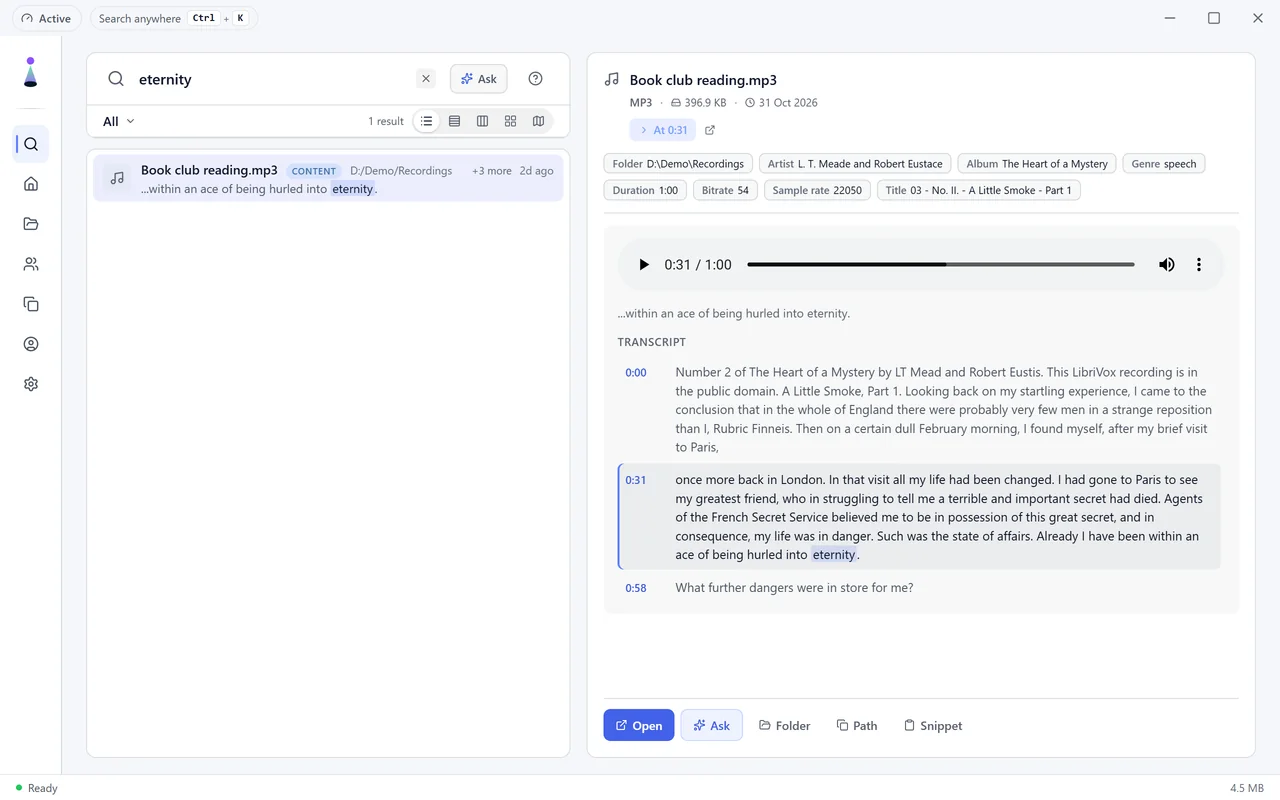
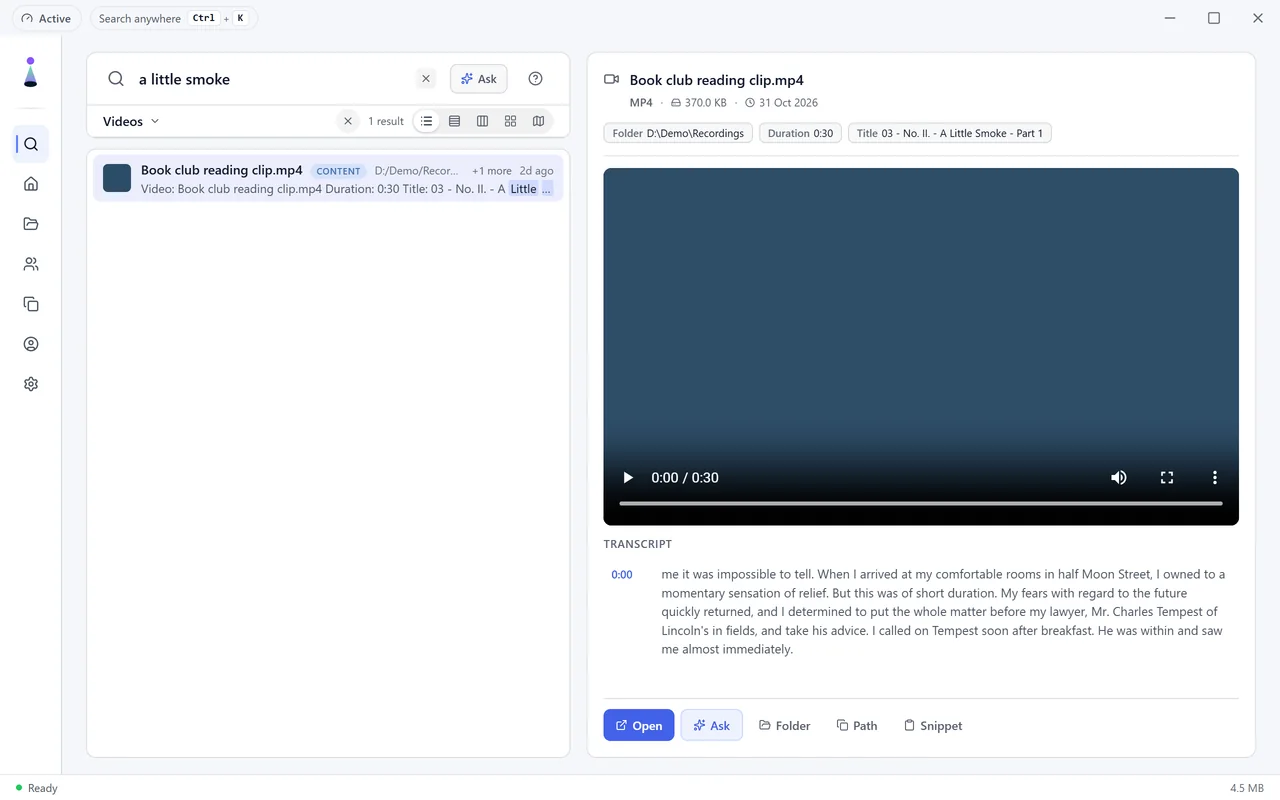
Select a result and the preview opens at the moment your words were said, with the player and the full transcript underneath. Every line carries a timestamp; click one to jump there. Videos also get a picture in the results, so a grid of recordings is easy to scan.
Off, Fast or Accurate
Transcribing takes processing time, so you choose how much it gets. The setting is Audio and video transcripts under Settings, AI & Models:
- Accurate (the default): every word as well as your tier can, and it takes longest.
- Fast: a smaller speech model, quicker, with slightly fewer words right.
- Off: nothing is transcribed and recordings are found by name and details only. Transcripts already made are kept.
What it costs, measured on our development PC (an Intel Core i7-10700K with an NVIDIA RTX 3060, 13.5 minutes of speech): on the processor alone, the Balanced tier’s Accurate setting transcribed about twice as fast as the audio plays and Fast about four times as fast. With the graphics card doing the work, Accurate ran between 15 and 28 times faster than the audio plays, depending on the tier. In the same test, Fast caught 43 of 50 distinctive words, Accurate 46 on Balanced and 49 on Max.
Each folder has its own switches on the Index page, in the folder’s details: Transcribe audio, Transcribe video, and Max minutes per file, which caps very long recordings so indexing stays light (30 minutes unless you change it; 0 means up to four hours). Turn transcription off for a music library and on for your lecture folder.
Which computers can do it
Transcripts are part of the Balanced and Max tiers, on Windows and on a Mac with Apple Silicon. They need a computer with more than 12 GB of memory, because the speech model runs beside everything else BeaconFind keeps loaded; on the Lite tier and on machines with 12 GB or less, the setting is not shown and recordings are found by name and details. The setup wizard and Settings, AI & Models show a table of what each tier does on your machine.
The speech model is downloaded once and runs on your computer. Your recordings are not uploaded, and the transcripts are stored in BeaconFind’s encrypted index on your machine. Details are in our privacy policy.
Find the moment it was said, free for 14 days, no card. Windows 10 and 11, and Macs with Apple Silicon.
Download BeaconFindFrequently asked questions
Can I search audio files for spoken words?
Only once the speech has been turned into text. A search box cannot match a word that exists only as sound, so the recording has to be transcribed first. BeaconFind transcribes the audio and video files in the folders you index, on your own computer, and then a search for a word someone said finds the recording and the moment it was said.
Does Windows Search find words spoken in a video?
No. Windows indexes the properties of media files, such as title, artist and length, and the contents of files that contain text. Microsoft's documentation says nothing about transcribing speech, so a video is found by its name and details, not by what is said in it.
Can a Mac search inside recordings?
Inside its own apps, partly. Voice Memos on a Mac shows transcripts and its search matches words in them, and Notes can record and transcribe audio on Macs with M1 or later, both with language and region limits. Spotlight does not find words spoken in audio and video files elsewhere on the disk; in our test on macOS 26 it found a recording by its name but not by a word said in it.
What is the difference between Fast and Accurate?
Fast uses a smaller speech model, so it finishes sooner and gets slightly fewer words right. On our test recordings Fast caught 43 of 50 distinctive words where Accurate caught 46 on Balanced and 49 on Max. Off leaves audio and video findable by name and details only; transcripts already made are kept.
Are my recordings uploaded for transcription?
No. The speech model is downloaded once and runs on your computer. The transcript is stored in the encrypted index on your machine, like the text of your documents.